Family Privacy Stack: What to Buy, Set Up, and Skip
A practical privacy and cybersecurity stack for families that want to protect identities, devices, passwords, kids, home Wi-Fi, and personal data without buying every security tool on the internet.
Quick Answer
The best family privacy stack starts with free basics: credit freezes, secure parent email, multi-factor authentication, device updates, and password cleanup. Then add a password manager and identity theft protection if your household needs alerts or recovery help. Rule of thumb: choose either an all-in-one safety suite or a modular stack of separate tools. Do not pay twice for overlapping features.
Updated May 19, 2026Family privacy stackIdentity, passwords, VPN, antivirusBuyer-first recommendations
Disclosure: Some links on this page may be affiliate links. Sybari may earn a commission if you buy through those links, at no extra cost to you. Recommendations are based on editorial review criteria, product fit, pricing, security features, public documentation, and buyer use cases.
Stack focusedBuilt to show what to buy first, later, and skip.
Family firstPrioritizes parents, kids, devices, and household accounts.
No fake testingNo invented lab tests or unsupported security claims.
Practical setupIncludes free steps before paid subscriptions.
Free Foundation
Free protections to set up before buying anything
Freeze credit first
Freeze adult credit at all three bureaus before paying for monitoring. A freeze helps block new-credit fraud, while monitoring mostly alerts you after activity appears.
Secure parent accounts
Protect the parent email accounts, banking logins, mobile carrier account, and password reset inboxes with unique passwords and multi-factor authentication.
Clean up devices and Wi-Fi
Update phones, laptops, browsers, and the home router. Change the router admin password and use guest Wi-Fi for visitors, smart TVs, and smart home devices.
Monitoring alerts. Freezes block.
Identity theft protection can be useful for family alerts and recovery support, but it does not replace free credit freezes, strong email security, or safer household habits.
Recommended Stack
The paid family privacy stack
First paid tool
Password manager
Compare family plans from 1Password, Bitwarden, Keeper, and Dashlane.
Use this to stop password reuse across email, school, banking, gaming, streaming, and shopping accounts.
Example family password manager page. Compare current plan limits and sharing controls before subscribing.
These are separate decisions, not one required bundle.
Use a VPN when family members travel or use public Wi-Fi. Add extra device security for Windows, Android, or households where teens download game mods, launchers, or unknown files.
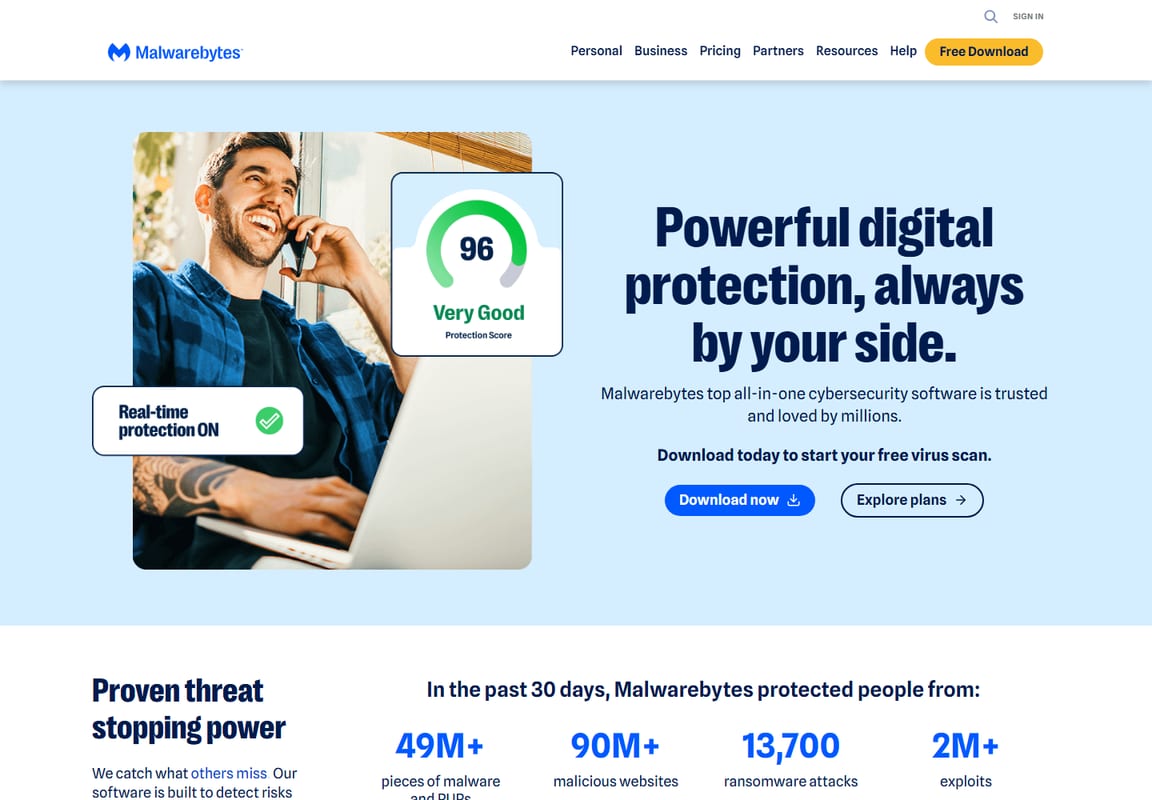
Example device security page. A VPN does not block phishing, malware, or identity theft by itself.
Useful for travel, public Wi-Fi, and malware risk.
Not a magic privacy shield and not a substitute for account security.
We organized this stack by risk reduction, household practicality, adoption likelihood, overlap risk, and whether a family is likely to use the tool consistently. Reviewed May 19, 2026, using FTC identity theft guidance, AnnualCreditReport.com, public product documentation, and common family use cases. We did not rank tools by fake lab scores or claim that any subscription prevents every scam, breach, or identity theft event.
This guide is written for U.S. households because credit freezes and credit bureau steps differ by country. Treat product names as examples inside the linked buyer guides, not as proof that every family needs every category.
Bundle Or Modular
Choose one stack path before buying tools
Path A: all-in-one suite
Best for busy parents who want one bill, one dashboard, and fewer setup decisions. This can work well if the bundled VPN, device security, password tools, and identity monitoring are good enough for your household.
Do not automatically add a standalone VPN, antivirus, or password manager until you know what your suite already includes.
Path B: modular tools
Best for families that want stronger control over each category, such as a dedicated password manager, separate identity monitoring, and a VPN only for travel.
Use this path if a parent is willing to maintain separate apps and subscriptions.
Sybari budget saver
Write down the annual cost of every paid tool before subscribing. If two products both claim to handle VPN, antivirus, password monitoring, or data removal, decide which one owns that job before paying for both.
Buy Or Skip
What to buy now, later, and skip
Use this table to avoid overlapping subscriptions. The goal is not to buy more software. The goal is to cover the highest-risk household gaps without paying for the same protection twice.
Category
Buy now if
Wait if
Skip if
Identity theft protection
Your family has exposed data, kids, frequent fraud concerns, or wants recovery help
You have not frozen credit or secured email yet
You expect guaranteed prevention
Password manager
Family members reuse passwords or share logins by text
You need time to train everyone
You will not actually move passwords into it
VPN
Your family travels, uses public Wi-Fi, or wants more network privacy
You only use trusted home networks
Your main concern is malware or phishing; a VPN does not block those by itself
Antivirus
You use Windows PCs, Android devices, or download lots of unverified files
Your devices are already well managed and low risk
You will ignore alerts and updates
Parental controls
You need screen time, app approval, location, or school-night device rules
You have not tried Apple Screen Time, Google Family Link, router controls, or built-in console settings
You only want to replace conversations and household rules
Home Wi-Fi tools
Your router is old, unmanaged, or shared with many smart devices
You have not changed the admin password or enabled guest Wi-Fi yet
You expect a premium router app to fix weak account passwords
Data removal
Your family has public exposure, harassment concerns, or creator visibility
You have not cleaned social profiles yet
You expect a one-time cleanup to remove every listing permanently
Decision Support
Quick match guide
Family with kids
Start with credit freezes, child identity checks, parent email security, a password manager, and family identity monitoring only after the free steps are handled.
Freeze credit for adults who are not actively applying for credit.
Check whether child credit files exist and freeze them if appropriate.
Secure parent email accounts with unique passwords and multi-factor authentication.
Move family passwords into a password manager, with separate vaults for parent accounts, shared household logins, and kid-safe logins.
Update devices, remove unused apps and browser extensions, and review kids’ devices for app permissions, location sharing, and payment access.
Change the home router admin password, update router firmware, and use guest Wi-Fi for smart TVs, visitors, and smart home devices.
Choose identity theft protection if alerts, child monitoring, and recovery support are worth the cost after free protections are complete.
Add VPN rules for travel, hotels, airports, coffee shops, school networks, and shared Wi-Fi.
Review public profiles and remove unnecessary family information from data broker sites where practical.
Common Mistakes
Family privacy stack mistakes to avoid
Buying a VPN Before Fixing Passwords
A VPN can help with network privacy, but it will not protect a reused email password or a compromised bank login.
Assuming Kids Are Too Young for Identity Theft
Children can be attractive targets because problems may not be noticed until years later.
Paying for Overlapping Tools
Many security suites overlap. Before buying, write down which tool handles identity, passwords, devices, network privacy, and data removal.
Buying Parental Controls Before Securing Parent Accounts
Parent email, banking, mobile carrier, and app store accounts control the household. Secure those before spending money on another child-monitoring dashboard.
Ignoring the Router and Smart Devices
A strong family stack can still be weakened by an old router password, outdated firmware, or smart devices sitting on the same Wi-Fi as parent laptops.
Treating Data Removal as a One-Time Fix
Data brokers can re-collect information over time. If you use a paid removal service, treat it as ongoing maintenance rather than a permanent cleanup.
Final Recommendation
Final family privacy stack recommendation
Start with free protections: credit freezes, secure email, multi-factor authentication, device updates, router cleanup, and safer family account rules. Then add a password manager. After that, compare identity theft protection if your family wants alerts and recovery support. Add VPN, antivirus, parental controls, and data removal based on real household habits, not fear-based marketing.
Sybari helps families choose privacy and security tools in plain English. This stack is designed as a practical buying order, not a claim that any tool can eliminate every cyber risk.
Most families should set up free basics first: credit freezes, secure email, multi-factor authentication, device updates, and router cleanup. The first paid tool is usually a password manager, followed by identity theft protection if the family wants alerts and recovery help.
Does every family need a VPN?
No. A VPN is most useful for travel, public Wi-Fi, shared networks, and privacy-conscious browsing. It does not replace passwords, device security, or identity protection.
Is identity theft protection worth it for families?
It can be worth it for families that want child monitoring, adult alerts, recovery support, and insurance benefits. It is less useful if the family ignores alerts or expects guaranteed prevention.
Can one tool replace the whole family privacy stack?
Usually no. All-in-one suites can reduce setup work, but families still need credit freezes, account security, device updates, and household rules. A subscription should support the stack, not replace basic habits.
Should we use an all-in-one suite or separate tools?
Use an all-in-one suite if your family wants one bill and fewer dashboards. Use separate tools if you want stronger control over passwords, VPN, antivirus, and identity monitoring. Avoid paying for both unless there is a clear reason.
Are Apple Passwords or Google Password Manager enough?
They can be a good starting point, especially for families already using one ecosystem. A dedicated family password manager may be better when parents need shared vaults, emergency access planning, or cross-platform support.
What about teens with gaming accounts?
Secure the email tied to the gaming account, turn on MFA when available, limit saved payment methods, review unknown downloads, and keep devices updated. A VPN alone will not protect a gaming account from phishing or reused passwords.
What should we do after a breach notice?
Change the affected password, turn on MFA, check whether that password was reused elsewhere, review account activity, and consider a credit freeze or fraud alert if personal information was exposed.
David Durden is a cybersecurity analyst and lead reviewer at Sybari.com with 12+ years of experience testing VPNs, antivirus, and SMB security tools. He focuses on real-world performance, not vendor claims, using hands-on testing across devices and networks to find what actually works.
Compare the best password managers for families, including 1Password, Bitwarden, Keeper, Apple Passwords, and Google Password Manager, with plain-English guidance on what to share, keep private, and skip.
Compare the best antivirus for families, including Bitdefender, Norton, Malwarebytes, and built-in protection, with guidance on device risk, gaming downloads, pricing, and what to skip.
Compare the best data removal services for seniors, including DeleteMe, Incogni, and Optery, with caregiver-aware guidance on pricing, privacy trade-offs, free steps, and what to skip.
 See Password Managers
 See Family VPN Picks